Every Hadoop behaviour you will tune later, from replication to task memory, is a configuration property. This lesson explains the layers those properties come from, which value wins, and how to ask a running daemon what it is really using. It also tours the web UIs and the /conf and /jmx endpoints that engineers open first when something looks wrong. All outputs and screenshots are from a real Hadoop 3.5.0 cluster.
Module 4 · Setup⏱ 28 minBeginner → IntermediateReal cluster outputCluster PlaygroundRuns in your browser (Python)8 practice problems
1 The story
Who decides the value: the jar, the file, or you?
Kabir's Docker cluster has dfs.replication=3 in its settings. He uploads a file with -D dfs.replication=2 and gets 2 copies. Then he marks the setting final, sure it can't be changed now, uploads again with -D dfs.replication=2, and still gets 2. Riya asks: “If a final setting can be changed, what does final even mean?”
Arjun Sir
Think of it in layers. Hadoop ships with a default for every one of its settings, inside its jar files. Your *-site.xml files override those defaults. And a client or job can set a value on top, for its own work, with -D.
Kabir
And final?
Arjun Sir
final protects a value against configuration files loaded later, for example the job.xml that comes with every submitted job. Your -D didn't load a file; it set the value directly in your own client, so it still won. That's exactly what we saw: 2 copies.
Riya
So how do I know which value a daemon is really using?
Arjun Sir
Ask it. Each daemon's web UI has a /conf page that lists every setting and which file it came from. Today: the files in etc/hadoop, the layers, the settings you'll change most, and the web UIs you'll open every day.
2 Definition
Hadoop configuration and web UIs
Formal definition (write this in exams)
Hadoop configuration is a set of name–value properties loaded in layers by the Configuration class: read-only defaults (core-default.xml, hdfs-default.xml, yarn-default.xml, mapred-default.xml, packaged in the jars), then site files in $HADOOP_CONF_DIR (by default $HADOOP_HOME/etc/hadoop: core-site.xml, hdfs-site.xml, yarn-site.xml, mapred-site.xml), then values set by programs or on the command line (-D). A later resource overrides an earlier one unless the earlier one marked the property <final>true</final>. Shell scripts (hadoop-env.sh, yarn-env.sh, mapred-env.sh) set environment variables such as JAVA_HOME and heap sizes; workers lists worker hosts. Each daemon also runs an embedded web server (NameNode 9870, DataNode 9864, ResourceManager 8088, NodeManager 8042, JobHistory Server 19888) with status pages and the /conf, /jmx and /logs endpoints.
In simple words
Hadoop has a default for everything. You change what you need in four XML files. A single command can change a setting just for itself. And every daemon has a web page where you can see its state and the settings it is really using.
Words you'll meet in this lesson
PropertyOne setting: a <name> and a <value> inside <property>.
*-default.xmlHadoop's built-in defaults, inside the jars. Read them, never edit them.
*-site.xmlYour overrides, in etc/hadoop.
HADOOP_CONF_DIRThe folder Hadoop reads site files from. Point it elsewhere to use another configuration.
final<final>true</final>: later configuration files cannot override this property.
-D name=valueSets a property for one command or job only.
/confA daemon's web page listing every property, its value and its source file.
/jmxA daemon's metrics as JSON, used by monitoring tools.
Defaults checked in Hadoop 3.5.0's *-default.xml
fs.defaultFS
file:/// (core-default.xml)
hadoop.tmp.dir
/tmp/hadoop-${user.name}; dfs.namenode.name.dir defaults to file://${hadoop.tmp.dir}/dfs/name
Server vs client settings: dfs.replication and dfs.blocksize are applied by the client that writes a file; changing the NameNode's file does not change existing files or other clients.
Restart to apply: daemons read their site files at start-up. Some settings can be refreshed (hdfs dfsadmin -refreshNodes, yarn rmadmin -refreshQueues); most need a restart.
Same files everywhere: every node must have the same configuration; cluster managers push it and track versions.
final is for administrators protecting cluster-wide values from job configurations (job.xml), not a lock against code running in the same client.
Values can use ${other.property} and ${env.VAR}; units such as 256m or 30s are accepted by many properties.
Exam tip: For “Explain Hadoop configuration files”, list the four site files with one example property each (fs.defaultFS, dfs.replication, yarn.resourcemanager.hostname, mapreduce.framework.name), mention hadoop-env.sh (JAVA_HOME) and workers, and state the rule: site files override the defaults, and final properties cannot be overridden by later resources.
3 Types and ways to use it
Kinds of settings, and the UIs that show them
Where
Format
Read by
Typical settings
*-default.xml (in jars)
XML
everything
Every property with its default; documented online
*-site.xml
XML
daemons and clients
Addresses, replication, memory, folders
*-env.sh
Shell script
start scripts and commands
JAVA_HOME, HADOOP_HEAPSIZE_MAX, log and PID folders
Applications and their state, nodes, queues and scheduler, links to each job's logs.
YARN
DataNode · 9864, NodeManager · 8042
One worker's own view: its volumes, blocks, containers and logs.
Workers
JobHistory · 19888
Finished MapReduce jobs: counters, tasks, timings. Start it with mapred --daemon start historyserver.
History
Add /conf, /jmx or /logs to any daemon's web address: http://localhost:9870/conf shows every setting the NameNode is using and the file it came from.
4 Step by step
Inspect and change configuration on a running cluster
All outputs are from the Docker practice cluster of Lesson 4.3 (Hadoop 3.5.0, 3 DataNodes). On the Path A install, drop the docker compose exec namenode prefix.
32 entries ship in etc/hadoop. The four site files, the env scripts and workers are the ones you'll edit; the rest configure optional services (KMS, HttpFS, router-based federation).
getconf prints the final, merged value: from your site file if set (fs.defaultFS, dfs.replication), otherwise the default (block size, address, heartbeat).
The running NameNode knows about 1,750 settings. All but a handful are defaults; only a few come from our site files. “programmatically” means the daemon set the value itself at start-up.
%r = replication, %o = block size, %b = bytes. Same file, three different storage layouts: replication and block size are chosen by the writing client, per file. With 1 MB blocks the 4.5 MB file becomes 5 blocks. (Open a shell with docker compose exec namenode bash; the CSV was copied to /tmp in Lesson 4.3.)
Change an existing file, and test “final”
hdfs dfs -setrep -w 3 data/copy2.csv
# a copy of the configuration with dfs.replication marked final
cp -r /opt/hadoop/etc/hadoop /tmp/fconf
#   in /tmp/fconf/hdfs-site.xml: <value>3</value><final>true</final>
HADOOP_CONF_DIR=/tmp/fconf hdfs dfs -D dfs.replication=2 -put canteen_orders.csv data/final_test.csv
hdfs dfs -stat "%r %n" data/copy2.csv data/final_test.csv
-setrep -w changes an existing file and waits until the new copies exist. The second line is the surprise from the story, tested for real: final blocks later configuration files, but -D sets the value directly in the client, so 2 still wins.
Open the web UIs
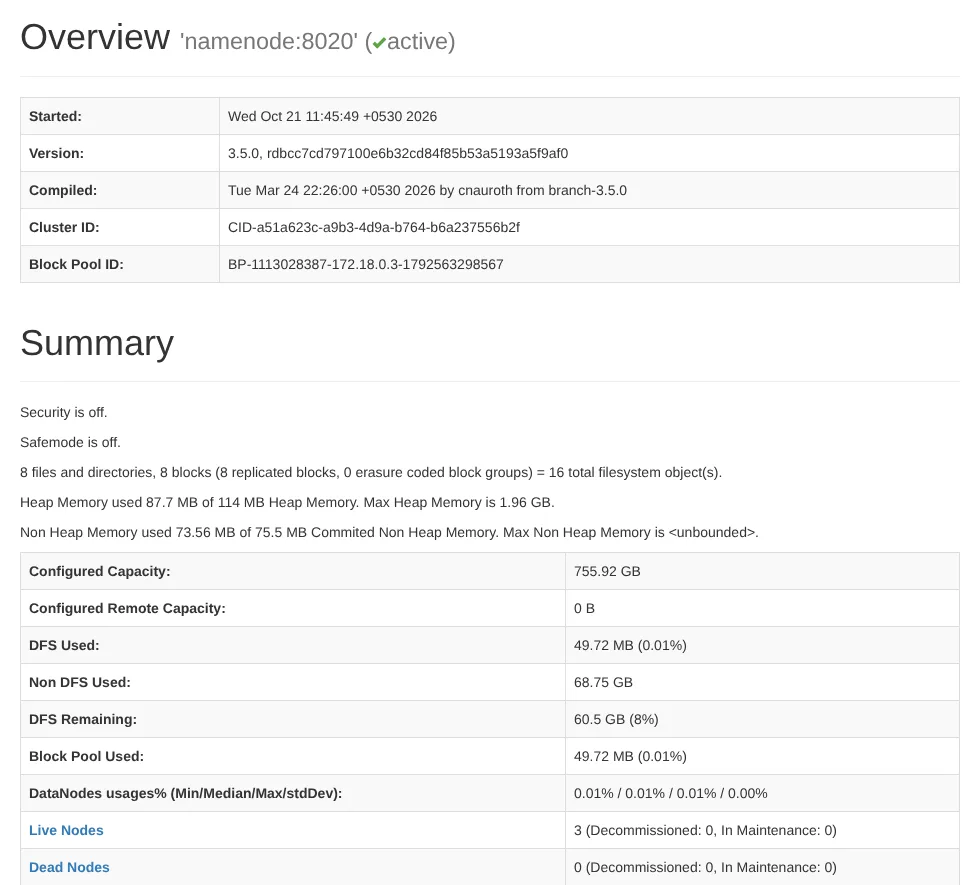
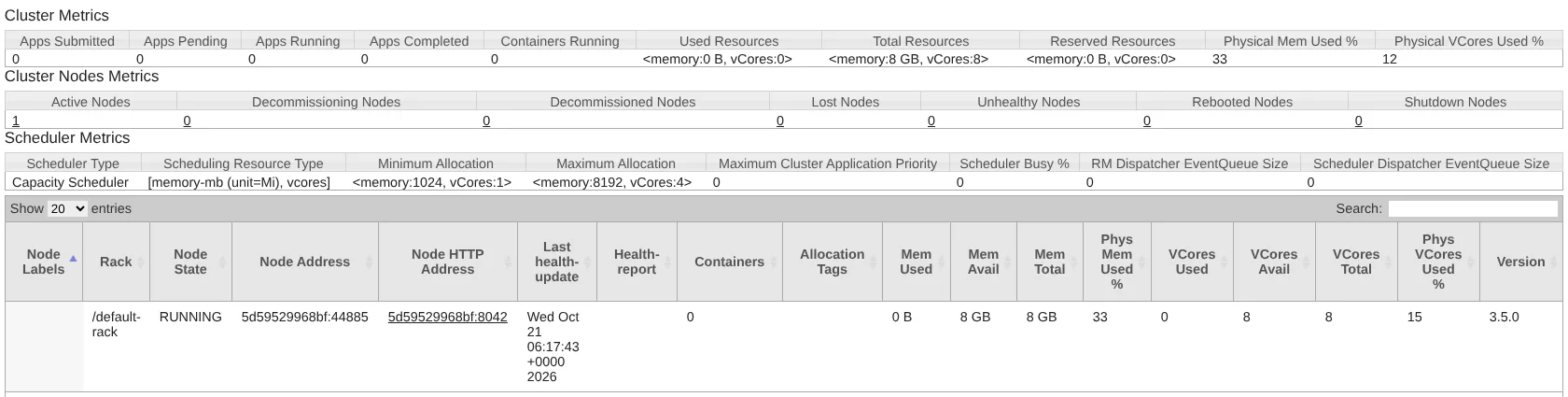
In a browser on your PC: http://localhost:9870 (NameNode) and http://localhost:8088 (ResourceManager). Below are the real pages of the practice cluster, cropped.
NameNode UI, Overview tab: version, cluster ID, safe mode, files and blocks, Live Nodes 3, Dead Nodes 0, under-replicated blocks.ResourceManager UI, Nodes page: 1 active node offering 8 GB and 8 vcores (YARN's defaults when nothing is configured), Capacity Scheduler, container sizes from 1 GB / 1 vcore up to 8 GB / 4 vcores.Screenshots show only the parts used in this course. The same data is available as JSON from /jmx (next step).
Read the same facts as JSON
curl -s "http://localhost:9870/jmx?qry=Hadoop:service=NameNode,name=FSNamesystemState" \
  | python3 -c "import sys,json; b=json.load(sys.stdin)['beans'][0]; [print(k,'=',b[k]) for k in ['FSState','NumLiveDataNodes','NumDeadDataNodes','FilesTotal','BlocksTotal','UnderReplicatedBlocks']]"
This is how monitoring systems watch a cluster: they poll /jmx and raise alerts when, for example, dead DataNodes or under-replicated blocks appear.
After editing a *-site.xml file, restart the daemons that read it (and copy the file to every node). Editing the file alone changes nothing in a running daemon, which is the most common “my setting doesn't work” mistake.
5 See it happen
One property, four layers
Follow dfs.replication through Kabir's experiments. Each terminal line is from the real run in Part 4.
Where does dfs.replication come from? 6 steps
What you see
Inside Hadoop's jar, hdfs-default.xml says replication is 3.
The running NameNode's /conf page shows the value 3 and its source: hdfs-site.xml (the cluster's own setting, also 3).
Kabir writes one file with -D dfs.replication=2: that file gets 2 copies.
-setrep changes the existing file to 3 copies and waits until the NameNode has made them.
With final=true in the site file, -D still sets 2: final protects against later files, not a direct setting.
Every file remembers the replication and block size it was written with.
Behind the screen
The bottom layer always exists: every property has a default in the jars.
Site files sit on top. Here the cluster's own file says 3 as well, so only the source changes.
A client's -D sits on top of both, for that client's own work only.
Replication of an existing file is changed with setrep, which tells the NameNode to add or remove copies.
final stops later configuration files from overriding the value. A value set directly with -D or in code is not a file, so it still applies.
The result is stored per file: four files, each with the settings it was written with.
Try it yourself: settings in the playground
The upload controls are settings a client sends: Block is dfs.blocksize and Replication is dfs.replication. Change them per upload and compare the files in the NameNode metadata tab.
6 Real-world use
Configuration and UIs at work
1. Configuration under version control
Site files live in Git or in the cluster manager, with a history of every change. A change is reviewed, pushed to all nodes, and followed by a rolling restart, one node at a time.
Change + review→Push to all nodes→Rolling restart
2. Per-job tuning without touching the cluster
A heavy nightly job asks for more memory per task and a specific queue with -D options, while every other job keeps the cluster defaults.
Cluster defaults→Job overrides→Only that job changes
3. Monitoring from /jmx
Monitoring systems (Prometheus exporters, Grafana dashboards, cluster managers) poll the daemons' /jmx endpoints for live DataNodes, capacity, missing blocks and queue usage, and page the on-call engineer when thresholds are crossed.
/jmx→Dashboards→Alerts
4. The UIs are the first stop in an incident
When users say “jobs are slow”, engineers open the ResourceManager UI (queues full? nodes lost?) and the NameNode UI (dead DataNodes? safe mode? disk full?) before reading any log.
Complaint→RM + NN UIs→Then logs
Simplified; organisations differ in tools and policies.
7 Run the code
Merge configuration layers like Hadoop does
This program loads three layers in order (defaults, site file, command line) and keeps the last value for each property, unless an earlier layer marked it final and the later layer is a file. It also records the source, like the /conf page.
layers = [
    ("hdfs-default.xml", "file", {"dfs.replication": "3", "dfs.blocksize": "134217728"}, set()),
    ("hdfs-site.xml", "file", {"dfs.replication": "1"}, {"dfs.replication"}),
    ("job.xml", "file", {"dfs.replication": "5", "dfs.blocksize": "268435456"}, set()),
]

conf, source, final = {}, {}, set()
for name, kind, props, finals in layers:
    for key, value in props.items():
        if key in final and kind == "file":
            print(f"ignored {key}={value} from {name} (final)")
            continue
        conf[key], source[key] = value, name
    final |= finals

for key in conf:
    print(f"{key:16} = {conf[key]:>10}  [{source[key]}]")
("hdfs-site.xml", "file", {"dfs.replication": "1"}, {"dfs.replication"}),The site file sets replication to 1 and marks it final (the last item is the set of final names).
if key in final and kind == "file":A later file cannot override a final property. (Values set directly, like -D, are not files: try challenge 2.)
final |= finalsFinals are added only after the layer is loaded, so they protect against later layers.
Run it on your PC: a configuration report from a live NameNode
With your cluster from Lesson 4.3 running, this program reads the NameNode's /conf page and reports how many settings come from each file, plus the value and source of four important ones. Save it as conf_report.py and run it on the same computer.
Where do the NameNode's 1,752 settings come from?
# conf_report.py: which settings is the NameNode really using, and from which file?
import urllib.request
import xml.etree.ElementTree as ET
from collections import Counter

URL = "http://localhost:9870/conf"           # NameNode web UI
root = ET.fromstring(urllib.request.urlopen(URL).read())

props = {}
for p in root.iter("property"):
    props[p.findtext("name")] = (p.findtext("value"), p.findtext("source"))

print(f"{len(props)} properties loaded")
for source, n in Counter(src for _, src in props.values()).most_common():
    print(f"{n:>5}  {source}")

print()
for key in ["fs.defaultFS", "dfs.replication", "dfs.blocksize", "dfs.namenode.name.dir"]:
    value, source = props.get(key, ("(not set)", "-"))
    print(f"{key:24} = {value}   [{source}]")

# In a terminal:
#   python3 conf_report.py
Real output from the Docker practice cluster. Two surprises worth knowing: fs.defaultFS shows “programmatically” because the NameNode sets it itself at start-up from its own address, and /conf shows ${…} variables unexpanded. On Path A your numbers and sources will differ slightly.
8 Line by line
Which value wins, one line at a time
Follow dfs.replication through three layers and watch conf and src change in memory.
Worked examples: real problems, solved and traced in memory
Three everyday configuration tasks: turning human-friendly sizes into the bytes Hadoop expects, finding differences between two nodes' configurations, and sizing YARN memory for a worker. Each runs live and is traced in memory.
Example 1BeginnerAdmin · units
Write block sizes the way Hadoop stores them
Problem statement
A team wants 64 MB, 128 MB and 256 MB block sizes for three data sets. Print the byte values to put in dfs.blocksize, and how many blocks a 10 GB file would have with each.
Recorded from a real Python run: press Next to execute one line at a time. Watch variables change in each frame, and lists and dictionaries (numbered #1, #2 …) fill up as objects.
Example 2IntermediateAdmin · drift
Find configuration drift between two nodes
Problem statement
Jobs fail only on one worker. Compare the settings collected from a good node and the bad node and print every property whose value differs or exists on only one side.
Input
good: replication 3, NM memory 8192, aux mapreduce_shuffle · bad: replication 3, NM memory 2048, no aux
For each, compare values (missing counts as a difference).
Print the differences in a table.
Solution: run it live
What happens in memory, step by step
Recorded from a real Python run: press Next to execute one line at a time. Watch variables change in each frame, and lists and dictionaries (numbered #1, #2 …) fill up as objects.
Example 3AdvancedCapacity · YARN memory
How much memory should YARN offer on a worker?
Problem statement
A worker has 128 GB RAM. Reserve 8 GB for the operating system, 4 GB for the DataNode and 2 GB for the NodeManager. Set yarn.nodemanager.resource.memory-mb to the rest, and work out how many 4 GB containers fit. (The practice cluster's UI showed the default of 8 GB per node.)
yarn.nodemanager.resource.memory-mb = 116736
4 GB containers per node: 28
Approach
Subtract the reserved memory.
Convert to MB for the property.
Containers = YARN memory // container size.
Solution: run it live
What happens in memory, step by step
Recorded from a real Python run: press Next to execute one line at a time. Watch variables change in each frame, and lists and dictionaries (numbered #1, #2 …) fill up as objects.
9 Quiz and revision
Check yourself
Quick revision
Lesson 4.4 in one screen
Layers: *-default.xml (in jars) → *-site.xml (etc/hadoop) → -D / code. Later wins.
final: later configuration files cannot override it (e.g. job.xml). A direct -D still applied in our test.
Edit → copy to all nodes → restart. Editing alone changes nothing in running daemons.
Interview and viva questions
What are the main configuration files in Hadoop?
core-site.xml (common settings such as fs.defaultFS), hdfs-site.xml (HDFS: replication, block size, storage folders, addresses), yarn-site.xml (YARN: ResourceManager host, NodeManager resources, auxiliary services), mapred-site.xml (MapReduce: framework, task memory, history server), plus hadoop-env.sh, yarn-env.sh and mapred-env.sh for environment variables, and workers for the list of worker hosts.
What is the difference between core-default.xml and core-site.xml?
core-default.xml ships inside Hadoop's jars and holds the default for every core property; it is read-only reference. core-site.xml is your file in etc/hadoop that overrides the defaults you want to change.
What is a final property in Hadoop?
A property marked <final>true</final> cannot be overridden by configuration resources loaded later, for example the job.xml of a submitted job. Administrators use it to protect cluster-wide values. It does not stop a program from setting the value directly in its own configuration object.
How do I check the value of a configuration property?
Use hdfs getconf -confKey <name> for the merged value seen by the client, or open http://<daemon-host>:<port>/conf to see what a running daemon uses, including the source file.
What are the default web UI ports in Hadoop 3?
NameNode 9870, SecondaryNameNode 9868, DataNode 9864, ResourceManager 8088, NodeManager 8042, MapReduce JobHistory Server 19888. (Hadoop 2 used 50070 for the NameNode and 50075 for DataNodes.)
Do I need to restart Hadoop after changing configuration?
Usually yes: daemons read site files at start-up. Some changes can be refreshed without a restart, for example hdfs dfsadmin -refreshNodes for include/exclude lists and yarn rmadmin -refreshQueues for scheduler queues. Client-side settings take effect on the next command.
Can I change the replication of an existing file?
Yes, with hdfs dfs -setrep <n> <path> (-w waits for completion). Changing dfs.replication in hdfs-site.xml only affects files written afterwards by clients that use that file.
Practice problems
Exercises on reading, converting and checking configuration values. Each one runs in the browser.
prefix = {"fs.": "core-site.xml", "dfs.": "hdfs-site.xml",
          "yarn.": "yarn-site.xml", "mapreduce.": "mapred-site.xml"}
for key in ["fs.defaultFS", "dfs.replication", "yarn.resourcemanager.hostname", "mapreduce.framework.name"]:
    print(key, "->", next(f for p, f in prefix.items() if key.startswith(p)))
How it works: The prefix usually tells you the file: fs → core, dfs → hdfs, yarn → yarn, mapreduce → mapred. (A few exceptions exist, such as hadoop.* in core-site.)
P2Easy
Port lookup
Print the web UI URL of each daemon on host nn1 (masters) or w1 (workers).
Input
NameNode, ResourceManager on nn1 · DataNode, NodeManager on w1
import re
line = "<property><name>dfs.replication</name><value>3</value><final>false</final><source>hdfs-site.xml</source>"
fields = dict(re.findall(r"<(name|value|final|source)>([^<]*)</", line))
print(fields)
How it works: name dfs.replication, value 3, final false, source hdfs-site.xml: the same fields conf_report.py reads.
P7Business problem
Cost of the 90% disk rule
A 20-node cluster has 12 disks of 4 TB per node. The NodeManager disk check marks a disk bad above 90% use. How much raw capacity (TB) sits in that last 10% across the cluster?
How it works: 128m = 134,217,728; 1g = 1,073,741,824; 512k = 524,288; and a plain number is already bytes.
Real-world scenario questions (asked in company interviews)
Configuration questions are about reasoning: where does a value come from, and how do you prove it?
Admin · configFresher
“I changed dfs.replication to 2 but files still have 3 copies”
An admin edited hdfs-site.xml on the NameNode host. New uploads from the edge node still show replication 3 and old files are unchanged.
The interviewer is checking: client-side vs server-side settings.
Show a strong answer
Replication is chosen by the writing client per file. The edge node still has its own hdfs-site.xml with 3.
Update and distribute the configuration to clients (and all nodes); verify with hdfs getconf -confKey dfs.replication on the edge node.
Existing files keep their replication; change them with hdfs dfs -setrep -w 2 /path if needed.
Admin · troubleshootingFresher
“How do you know which value a daemon is using?”
Two engineers disagree about the NodeManager memory setting on a worker.
The interviewer is checking: do you know how to check instead of guessing?
Show a strong answer
Open http://<worker>:8042/conf: it shows the value the running NodeManager loaded, and its source file.
Compare with the file on disk; if they differ, the daemon was not restarted after the change.
The ResourceManager Nodes page also shows each node's total memory and vcores.
Platform · governanceExperienced
Users keep overriding a cluster setting in their jobs
Some teams submit jobs with very large task memory, starving others. The platform team wants to stop job configurations from overriding certain values.
The interviewer is checking: what final does and does not do, and the right tools for limits.
Show a strong answer
Mark cluster-wide values final in the site files on the nodes, so a job's job.xml cannot override them there.
Know its limit: a client can still set a value directly in its own process, so final is not a security control.
Enforce limits on the server side: YARN's maximum allocation (yarn.scheduler.maximum-allocation-mb) and queue capacities in the scheduler.
Monitor usage per queue and review exceptions.
Operations · monitoringExperienced
Set up basic monitoring for a new cluster
A small company has just built a Hadoop cluster and has no monitoring yet.
The interviewer is checking: do you know where the metrics come from and what matters?
Show a strong answer
Collect metrics from each daemon's /jmx endpoint (or a Prometheus exporter that reads it).
Alert on: dead DataNodes, missing or under-replicated blocks, HDFS capacity, safe mode, NodeManagers lost or unhealthy, queue usage and failed applications.
Dashboards for trends (capacity growth, job durations) and links to the NameNode and ResourceManager UIs for investigation.